- Home
- Blog
- Microstrategy
- MicroStation Interview Questions

MicroStation Interview Questions for Beginners
MicroStation Interview Questions for Intermediate Learners
MicroStation Interview Questions for Experienced Learners
MicroStation Interview Questions for Scenario-based Interview Questions
MicroStation interviews - The Inside View
Quick Briefing:
What are you getting?
- Go through the quick takes if your MicroStation interview is very near
- Read through the entire article if your interview is scheduled a bit later
Table of Content
- MicroStation Interview Questions for:
- Interview Preparation Tips
- MicroStation interviews - The Inside View
- Why is the MicroStation Career Crucial in 2026?
- Frequently Asked Questions
MicroStation Interview Questions for Beginners
Learn these basic-level questions to build a strong foundation in MicroStation.
1) What is MicroStation?
Quick Take: MicroStation is CAD software developed by Bentley Systems that we can use to create 2D drawings and 3D models.
MicroStation uses the DGN file format and supports accurate geometric design, BIM workflows, GIS integration, and more. Industries such as civil engineering, transportation, oil and gas, and structural engineering use MicroStation for their infrastructure and engineering projects.
2) What are cells and reference attachments in MicroStation?
Quick Take: A cell is a reusable collection of elements that we can store in a cell library or DGN file. On the other hand, a reference is an external file that we can attach to the design file for coordination.
We can use cells to standardize frequently used objects and reduce repetitive drafting work. There are different types of cells, including standard, shared, and parametric.
Reference attachments allow multiple drawings to share common information. Common reference attachments include DGN, DWG, PDF, and raster images.
3) How does MicroStation differ from AutoCAD?
- MicroStation is a product of Bentley Systems, whereas AutoCAD is a product of Autodesk.
- MicroStation uses the DGN file format, whereas AutoCAD uses the DWG file format.
- MicroStation is widely used in infrastructure, transportation, utilities, and civil engineering projects. On the other hand, AutoCAD is widely used in general drafting, architecture, mechanical, and electrical design.
| If you want to enrich your career and become a professional in MicroStation, then visit Mindmajix - a global online training platform: "MicroStation Certification" This course will help you to achieve excellence in this domain. |
4) What do you mean by levels in MicroStation?
Quick Take: Levels in MicroStation help organize different design elements by category, including road centerlines, annotations, and dimensions. It helps manage drawings effectively.
Levels are similar to layers in other CAD software. We can use levels to separate different types of objects for better editing. Also, you can control element visibility using levels and apply standards consistently across projects.
Road centerline, pavement, buildings, dimensions, and annotations are some examples of levels in MicroStation.
5) Describe AccuDraw in MicroStation?
Quick Take: AccuDraw is an intelligent, dynamic drafting tool that lets us control cursor orientation and improve drafting speed and accuracy.
The intelligent coordinate system of AccuDraw displays direction, distance, and angle fields. We can significantly reduce manual coordinate calculations with this tool and improve productivity in 2D drafting and 3D modeling.
The Compass, Coordinate window, origin point, and axes are key components of AccuDraw.
6) What are models in MicroStation?
Quick Take: Models are separate design spaces stored in a DGN file. A model is a container for design elements.
A model is created when you place elements in a DGN file. Each model can contain its geometry, views, units, annotations, and settings. We can use models to separate design data from drawing sheets.
There are three types of models: design, sheet, and drawing.
7) What do you mean by seed files?
Quick Take: A seed file is a template for a DGN file. It contains preconfigured settings such as units, coordinate system, levels, text styles, and dimension styles.
MicroStation copies the settings from a seed file into a new DGN file, ensuring consistency across multiple drawings. We can also apply organizational CAD standards using a seed file. We can minimize configuration errors as much as possible using a seed file.
8) What is the latest version of MicroStation?
MicroStation 2026 is the latest version of MicroStation. It has significant enhancements for CAD modeling, automation, and infrastructure design workflows.
9) List the key features of MicroStation 2026.
Below are the key features of MicroStation 2026.
- Python Assistant
- Bentley Copilot
- Geographic Coordinate System (GCS) Dialog Improvements
- Search Location Tool
- 3D Geospatial Context Dialog
- Configurations Wizard
- Component Center 2.0
- Updated Spacemouse Integration
10) Discuss the AI capabilities of the MicroStation 2026 release.
Quick Take: Python Assistant and Bentley Copilot are the AI capabilities of the MicroStation.
- Python Assistant
- We can use this AI assistant to automate repetitive tasks, make advanced integrations, and customize workflows with AI-assisted script generation.
- This tool simplifies code generation and improves productivity.
- Bentley Copilot
- It is another MicroStation AI assistant that helps speed up onboarding and offers guidance to users through natural language.
- It helps eliminate the AutoCAD-to-MicroStation terminology gaps.
- It helps users develop workflows easily.
- It helps improve productivity, reducing downtime.
11) Discuss the 3D geospatial context capabilities of MicroStation.
3D geospatial context is a new dialog that can integrate with global datasets such as Cesium World Terrain, OSM buildings, and Google photorealistic 3D tiles, using the Open 3D Tiles standard.
Related Article: MicroStation Tutorial
MicroStation Interview Questions for Intermediate Learners
Explore these interview questions and answers that interviewers use to assess your domain expertise.
12) Explain the key differences between cells and references in MicroStation.
| Features | Cells | References |
| Purpose | They can be repeatedly used to place standard symbols | They can be used to combine multiple files into a single working environment. |
| Storage | They can be stored in a cell library | They can be stored as a separate external DGN file. |
| Reusability | They can be designed to be inserted into standard components many times. | They can be designed for linking entire drawings into a project. |
13) How do you create and manage seed files?
The following approach will help create and manage seed files.
- Creating a seed file
- Create a new DGN file.
- Configure project settings, including working units, global origin, and other settings.
- Define standards by setting up text, dimension, and line styles.
- Save the configured DGN in the designated seed file directory.
- Managing a seed file
- Storing approved seed files in a central location
- Avoiding creating multiple unofficial versions
- Updating seed files only when standards change
- Organizing seed files based on projects such as civil design, structural design, and survey design
- Protecting standard settings by restricting editing permissions on master seed files.
14) Explain reference attachments in MicroStation.
Quick Take: Reference attachments are generally known as references. They are external files linked to the active MicroStation design file.
Reference attachments allow users to attach external DGN, DWG, PDF, and image files without embedding them into the drawings. It enables multiple teams to work on different files while all files are displayed simultaneously.
A reference file acts like a live link to another file. If the source file is updated, the referenced file displays the update without copying the data.

15) How do you set up a geographic coordinate system (GCS) in MicroStation?
We can use the following procedure to set up a GCS system.
- Open the DGN file that needs to be georeferenced
- Go to the ‘Geographic’ menu and select the geographic coordinate system
- Click ‘From Library’ and search for the required system using the EPSG code and projection type
- Select the appropriate coordinate system and apply it to the active DGN file
- Use map backgrounds to verify whether the model is positioned correctly
- Save the DGN file
16) How does AccuDraw improve drafting efficiency?
We can use the following methods to improve efficiency.
- AccuDraw minimizes manual measurement errors by using precise coordinate-based input.
- We can use AccuDraw commands and keyboard shortcuts to complete critical drafting operations.
- This tool aligns perfectly with existing elements and geometry, so we can extend lines, create perpendicular objects, and maintain consistent angles.
- AccuDraw simplifies the creation of complex three-dimensional geometry by adjusting its coordinate system to match the working plane.
- It allows entering distances, angles, and coordinates, minimizing mouse use.
17) How do you manage element templates and feature definitions?
- Managing element templates
- MicroStation allows users to create templates with predefined properties such as level, color, line style, line weight, and dimension style.
- We can store templates in a DGN library, allowing users to access company-approved templates.
- If there are any changes to standards, we can use the element template manager to edit the required properties and save the updated template.
- Managing feature definitions
- We can manage feature definitions using the explorer interface.
- We can select the appropriate feature definition when creating engineering objects, such as roads, drainage networks, and corridors.
- It is better to store feature definitions in a central library.
18) What is the difference between a cell and a shared cell?
Both cells and shared cells are reusable objects for inserting standard components into a MicroStation design.
| Cell | Shared cell |
| It becomes larger when we insert many copies | Smaller since we can store only one definition |
| We can modify every cell instance independently. | Changes to a definition affect other instances that use it. |
| We can use cells for infrequently used objects | We can use shared cells for frequently repeated symbols and components. |
19) How would you improve MicroStation performance when working with large files?
We can apply the following methods to improve MicroStation performance.
- Using shared cells rather than normal cells for repeated objects such as trees, poles, and traffic signs
- Managing reference attachments efficiently
- Disabling levels that are irrelevant to the ongoing task
- Compressing the DGN files by removing unused shared cell definitions and internal data
- Optimizing raster images, point clouds, and display settings
20) Explain raster manager and its uses.
Quick Take: Raster Manager is a tool that we can use to attach, display, manage, and manipulate raster images within a MicroStation design file.
Raster manager allows you to work with scanned drawings, aerial photographs, maps, and other image-based data. The important thing is that you do not need to insert the data into the DGN file.
Generally, raster images are attached as references. They support many image formats, including JPEG, TIFF, PNG, BMP, and GeoTIFF.
We can use the raster manager to streamline GIS projects, survey mapping, and utility mapping.
MicroStation Interview Questions for Experienced Learners
Enhance your expertise in MicroStation by learning these in-depth interview questions.
21) Explain named groups and their advantages.
Quick Take: A named group is a logical collection of elements. We use named groups to manage multiple objects without physically combining them.
Each element in a named group acts independently. We can edit the elements individually. By using named groups, we can simplify the organization, selection, and manipulation of related objects throughout the project lifecycle.
Named groups are highly useful in organizing road markings, electrical symbols, bridge components, annotation sets, and structural members.
22) How do you convert a 2D drawing into a 3D model?
Following the steps below will help you with this conversion.
- Prepare the 2D drawing first. Ensure that you have closed all open shapes and removed duplicates.
- Create a new 3D design model and set the desired working units
- Develop closed profiles and ensure that the shapes are closed for solid modeling
- Use 3D modeling tools, such as extrusion along a direction, revolve, sweep along a path, and loft, to generate 3D geometry
- Refine the model through solid modeling operations
- Improve visualization quality by adjusting colors, textures, and other visual elements.
- Validate the model for dimensions, geometry accuracy, and compliance with project standards.
23) Explain Workspace and WorkSet architecture in MicroStation.
Quick Take: Workspace is a collection of standards and configuration settings, including cell libraries, seed files, line styles, and levels. A WorkSet includes project-specific settings and data.
- Workspace: We can control workspaces using configuration variables. We can use workspaces to reduce drafting errors. Besides, it ensures consistency across projects by pointing to shared resource paths.
- WorkSet: A WorkSet consists of all project data in one place. It includes project DGN files, reference files, seed files, coordinate systems, and project resources. Mainly, it simplifies project management and collaboration.
24) How do you handle coordinate systems and Georeferencing in MicroStation?
Georeferencing integrates MicroStation with survey data, GIS layers, aerial imagery, and others.
We can follow the following procedure to handle coordinate systems.
- Select the appropriate geographic coordinate system
- Verify survey coordinates before importing survey data
- Insert georeferenced data by importing survey files, GIS shapefiles, and terrain models
- Insert external design files as references to allow various departments to collaborate
- Reproject data when necessary, when incoming datasets use different coordinate systems
- Validate Georeferencing by examining whether survey control points align and GIS layers overlay properly, and so on
25) How do you attach and manage point cloud data?
Point cloud data is a collection of many 3D points captured using various tools. The tools can be LiDAR scanners, laser scanners, and drones. We leverage point clouds to represent existing site conditions, enabling accurate modeling and measurement.
Let’s go through the steps to attach point cloud data to MicroStation.
- Prepare the point cloud file in a format such as LAS, LAZ, POD, or E57
- Open the DGN file, where we can use the point cloud data
- Attach the point cloud using the references dialog box.
26) How will you troubleshoot a missing reference file in MicroStation?
We can troubleshoot a missing reference file using the following methods.
- Checking the reference status by opening the references dialog
- Verifying the file exists, or the filename has changed, or the extension is correct, by navigating to the stored location
- Reattach or redirect the missing reference and save the design file
- Ensure the network drive is mapped correctly if references are stored in a shared drive
- Verify absolute and relative paths and update them
- Review the WorkSet and workspace configuration
- Verify file permissions and ensure security policies are not blocking access to the reference.
- Reload the reference after troubleshooting the issue.
27) Describe the process of creating and customizing a custom line style with point symbols.
- Creating the point symbol cell
- Create or open a cell library
- Draw the geometry that you want as a symbol
- Define it as a cell with a name and description
- Create a new line style definition by using the line style editor
- Define the components, such as the point component, the stroke pattern component, and the compound component.
- Customization
- Configure the point component settings and build the line style
- Save the design to a line style library and adjust the line style scale factor
- Share the .rsc file with other users
- Ensure that other users' configuration variables point to the same reference files to maintain a consistent display.
28) How would you automate a repetitive drafting task using Python Assistant?
We can use the Python assistant to create scripts that automate repetitive drafting processes. Using Python scripts, we can interact with the design model, manipulate elements, and execute commands automatically. This approach helps reduce manual effort, improve consistency, and minimize errors.
The following are some of the tasks that can be automated in MicroStation:
- Placing standard cells and repetitive symbols
- Modifying element properties
- Renaming levels
- Generating annotations
- Creating standard title blocks and borders
- Moving elements to different levels
- Generating reports from drawing data
- Exporting files to PDF or DWG
29) How would you create and apply item types for attribute-driven design?
The following step-by-step procedure can be used to create item types:
- Create an item type using the item types dialog
- Create a new item type library and an item type definition
- Define individual properties for every item type
- Set default values and create enumerations
- Save the item types into a DGNLIB
- Attach the DGNLIB to the workspace
30) How do parametric cells differ from standard cells?
| Standard Cell | Parametric Cell |
| It is a fixed, reusable drawing element | It is also a reusable element. We can change the geometry of the element based on parameters |
| We cannot change the shape and dimensions after placement. | We can modify the size and shape by changing parameter values |
| We can use it for repetitive objects such as symbols and bolts. | We can use it for components such as doors, windows, and pipes with variable dimensions. |
| It contains only predefined geometry | variables, constraints, and relationships that can control its geometry. |
MicroStation Scenario-based Questions
Learning these questions helps you tackle challenges in real-time environments. So never miss it.
1) A 3D DGN file contains multiple references and raster images. It takes several minutes to open and becomes unresponsive while editing or zooming in and out. How would you identify the cause and resolve the issue?
- Identifying the cause
- The cause for the slowdown can be the design file, external references, or raster images.
- Troubleshooting
- I will take the following actions to improve the performance. I will test the performance after applying each action.
- Check the file size first
- Disable or unload non-essential references temporarily
- Review raster images and point clouds to determine whether they are optimized or large
- Examine the model for duplicate elements, unused levels, and complex geometry
- Verify that only the necessary references are loaded
- Reduce view depth, turn off unnecessary display styles, and use lower rendering settings
- Compress the DGN file to remove unused data
2) The model list is showing empty in the attachment properties dialog box in our MicroStation software, as shown in the image below. How to resolve this issue?
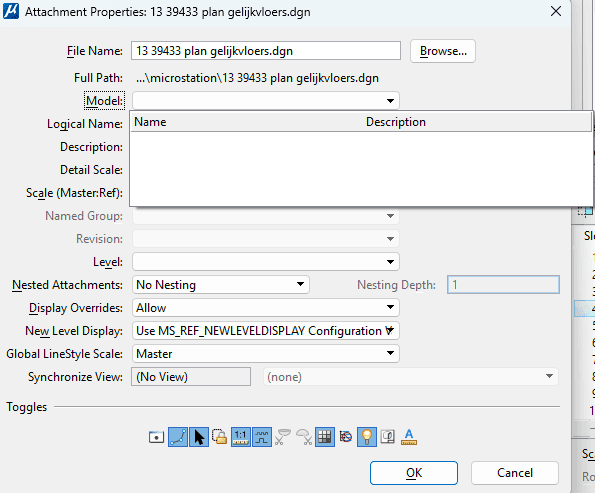
- Cause for the problem:
- The referenced DGN file may be invalid or corrupted.
- The file path may be incorrect.
- When the DGN files have no accessible models
- No read access permission to the referenced file
- Incorrect configuration variables
- Troubleshooting
- Running Compress Design on the referenced file
- Testing by attaching a different DGN file. If the models appear correctly, the problem exists only in the original reference file.
MicroStation Interview Preparation Tips that are Proven
Preparing for an interview is more crucial for turning opportunities into offers. With that in mind, we provide these tips to help you prepare for MicroStation interviews.
- Strong practice – before attending an interview, do hands-on practice in precise vector drawing and MicroStation tools.
- Strengthen technical expertise – brush up your knowledge in file management, formats, and customization.
- Show your collaboration skills – speak about how you are ready to collaborate with various teams and handle feedback positively.
- Discuss your projects – Share your project experience wherever possible, such as how you met deadlines and managed working under pressure. It shows your positive mindset to the hiring team.
- Highlight your quality awareness – Mention your specific habits of examining drawings against standards and eliminating errors before final submission.
- Show yourself as a continuous learner – Share the training, workshops, and other learning programs you have recently completed with the hiring team. It will show your interest in continuous learning.
MicroStation Interview Process in 2026 - The Inside View
Understand how companies filter and hire MicroStation professionals from this section.
Pre-interview - Resume Screening
The HR team evaluates your resume based on the role, your experience, and your industry domain, and shortlists candidates.
- Round 1 - HR team:
This is an initial assessment round. An HR executive will ask you over the phone about your technical background and project experience and assess your communication skills.
Selection Criteria: You will be shortlisted if you have the essential qualifications required for the role.
- Round 2 - Technical Assessment:
In this technical round, some companies conduct online multiple-choice tests. Otherwise, a technical expert will conduct this round. You will be given hands-on drawing exercises, engineering calculations, and other tasks to test your basic understanding of MicroStation.
Selection Criteria: You will be shortlisted if the interviewer is satisfied with your fundamental knowledge of MicroStation.
- Round 3 - Deep Technical:
This is the most important round. In this round, you will be asked to solve real-time challenges. Recruiters will examine your practical skills in depth, including troubleshooting, file management, and familiarity with CAD design industry standards.
This round may include coding assessment, CAD practice tests, and BIM/GIS integrations.
Selection Criteria: You will be filtered out if you lack adequate hands-on skills with the software.
- Round 4 - Managerial or Client:
If you have applied for senior roles, then this round is critical. In this round, a senior manager and/or client conducts the interview, examining your ability to collaborate with teams, manage deadlines, project ownership, and other leadership and managerial qualities.
Selection Criteria: You will be shortlisted if the hiring team or client is satisfied with your technical expertise and managerial qualities.
- Round 5 - HR Team:
This is the final round. The HR manager or the management team will initiate salary negotiations and assess cultural fit. They will finalize your candidacy if you meet their expectations, and you will be given the offer letter.
Why is a MicroStation career crucial in 2026?
A career in MicroStation is promising in 2026. Let’s see why:
According to TheirStack, more than 1,000 companies worldwide use Bentley MicroStation, including CPS Energy, AMT Engineering, Transystems, and Sambatek, for their engineering design requirements.
Payscale reports that MicroStation engineers in India earn an average of ₹681,000 per year. ZipRecruiter states that they can earn between $34,000 and $153,000 per year in the US.
Thus, you can understand that gaining MicroStation skills is relevant and opens up many job opportunities across diverse industries.
MicroStation Frequently Asked Questions
1) Is learning MicroStation easy for beginners?
Yes, beginners can learn MicroStation easily. Before learning MicroStation, gain some understanding of technical drawing, engineering symbols and annotations, CAD concepts and standards, which will help you learn MicroStation quickly.
2) What is MicroStation v8i software used for?
MicroStation v8i is CAD software for creating, editing, and managing 2D drawings and 3D models. It is widely used in engineering, architecture, construction, and geospatial projects.
3) What skills are required for MicroStation engineers?
- Ability to create accurate 2D drawings and 3D models using MicroStation tools
- Sound knowledge of engineering symbols, dimensions, and industry standards
- Familiarity with levels, cells, references, element templates, annotation, and dimensioning
- Proficiency in coordinate systems, geospatial data, and Georeferencing techniques
4) What are the job responsibilities of MicroStation engineers?
- Develop accurate 2D drawings and 3D models using MicroStation
- Develop clear documentation and ensure it complies with project standards
- Work with different teams to create high-quality engineering designs
- Create and manage reusable cells and shared cells
- Examine dimensions, annotations, scales, and coordinates
- Optimize design performance by managing references and level displays
5) What is the difference between MicroStation and STAAD?
MicroStation is a CAD and drawing platform for creating, editing, and managing 2D/3D designs. On the other hand, STAAD is a structural analysis and design application for modeling structural systems and performing finite element analysis.
MicroStation is suitable for CAD engineers, architects, civil/transport designers, and BIM coordinators. On the other hand, STAAD is suitable for structural engineers and analysts.
Conclusion
Microstation is one of the key infrastructure CAD platforms in 2026. We hope that these MicroStation interview questions and answers have helped you gain a deep understanding of the platform. The additional information must have helped you prepare effectively for the interviews.
If you want to learn more about MicroStation, you can register for a course in MindMajix. It will help you gain strong hands-on expertise in the platform and ace your interviews easily.
 On-Job Support Service
Online Work Support for your on-job roles.

Our work-support plans provide precise options as per your project tasks. Whether you are a newbie or an experienced professional seeking assistance in completing project tasks, we are here with the following plans to meet your custom needs:
- Pay Per Hour
- Pay Per Week
- Monthly
| Name | Dates | |
|---|---|---|
| MicroStrategy Training | Oct 24 to Nov 08 | View Details |
| MicroStrategy Training | Oct 27 to Nov 11 | View Details |
| MicroStrategy Training | Oct 31 to Nov 15 | View Details |
| MicroStrategy Training | Nov 03 to Nov 18 | View Details |