- Home
- Blog
- Salesforce
- Salesforce Tutorial

- Apex Class in Salesforce
- Approval Process In Salesforce
- Step By Step Guide to Becoming a Certified Salesforce Developer
- Bulkification in Salesforce
- Code Coverage In Salesforce
- Context Variables In Salesforce
- Controller Extension in Salesforce
- Controlling the program flow in Salesforce
- How To Create Data Modeling In Salesforce?
- Custom Controller in Salesforce
- Custom Reports In Salesforce
- DML Operations In Salesforce
- Top 10 Features of Salesforce Lightning
- Governor Limits in Salesforce
- How Salesforce Certification Can Boost Your Career?
- Salesforce Lookup Relationship
- Master-detail Relationship in Salesforce
- User Management And Object Level Security In Salesforce
- Price Book in Salesforce CPQ
- Product Bundle in Salesforce CPQ
- Quote Line Editor In Salesforce CPQ
- Why Learn Salesforce?
- Record Level Security In Salesforce
- Report Building in Salesforce
- Salesforce Automation Testing With Selenium
- Salesforce Collection of Map
- Salesforce Collection of Set
- Salesforce CPQ Implementation Guide
- Salesforce CPQ Tutorial
- How to create dashboard in Salesforce
- Salesforce Developer Certification, Jobs And Salary Trends
- An Overview of Salesforce Development Environment
- Salesforce Interview Questions
- Salesforce Lightning Interview Questions
- Salesforce Lightning Tutorial
- Salesforce Enhances Its Marketing Cloud With AI And Google Partnership
- Salesforce Job Roles And Certifications
- Salesforce vs ServiceNow
- Salesforce Vs Siebel CRM'S
- Access Specifiers in SalesForce Cloud Computing - Salesforce
- An Introduction to Exception Handling – SalesForce
- An Introduction to Visualforce – SalesForce
- An Overview of Salesforce Security
- Annotation in SalesForce
- Classes, Inheritance and Overriding in SalesForce
- Configuring Salesforce Web-To-Lead Form
- Creating Visualforce Page using AJAX Programming - Salesforce
- How to Create Field Dependence in SalesForce
- How to Create Sample Apex Trigger in SalesForce
- How to Define Validation Rules in SalesForce
- Object Relationships Overview – SalesForce
- SalesForce Integration and Environment in Cloud Computing
- SalesForce Deployment and Assertions
- Shallow copy and Deep Copy in Cloud Computing - Salesforce
- Security and Audit Trail in Salesforce
- Salesforce SOQL
- SOSL Of Salesforce
- Standard Controller In Salesforce
- Test Class in Salesforce With Example
- Testing APEX In Salesforce
- Time Dependent Workflow Rule - Action
- Trigger Scenarios in Salesforce
- What is CRM? - A Complete Beginners Tutorial
- What is Salesforce Administrator?
- What is Salesforce CRM?
- Why You Should Learn Salesforce Skills
- Workflow Rules In Salesforce
- Configuring Tasks in Workflow Rules
- How to call APEX Class
- Context Variables
- Configuring Email alert in Workflow Rules
- Salesforce Web Services
- Salesforce Vlocity Interview Questions
- Salesforce CPQ Interview Questions
- Visualforce Interview Questions
- Salesforce Tools
- Salesforce Integration Interview Questions
- Custom Settings in Salesforce
- What is Salesforce Database?
- Salesforce Data Loader
- Salesforce Platform Events
- What is Salesforce Marketing Cloud - Definitive Guide
- Bucket Field In Salesforce - Bucket Column Salesforce
- What is Junction Object In Salesforce?
- Sharing Rules in Salesforce
- What is Salesforce Architecture?
- Salesforce Projects and Use Cases
- Salesforce Marketing Cloud Integration
- Microsoft Dynamics VS Salesforce
- Salesforce Admin Projects and Use Cases
- Salesforce Apex Tutorial
- Salesforce Apex Development Tutorial
- Apex Testing and Deployment
- Salesforce Data Operations
- Salesforce Security
- Salesforce Data Modeling and Relationships
- Salesforce Integrations
- Salesforce Reporting and Data Loader
- Salesforce Career Guidance
- Salesforce Comparisons
- Salesforce Administrator Tutorial
- Salesforce Database and Custom Settings
- Salesforce Automation: Workflow Rules, Approval Processes, Governor Limits, and Bulkification
- Salesforce Development
- What is Salesforce Agentforce
- Salesforce Agentforce vs Salesforce Service Cloud
- Salesforce Agentforce Architecture
Having a dynamic, intelligent Customer Relationship Management (CRM) tool is an advantage for business success. It helps businesses understand and address customer needs and improve productivity.
On that note, Salesforce is one of the most popular CRM platforms used by organizations worldwide, from small businesses to large enterprises. It offers a range of products for sales, marketing, service, and other business areas.
This Salesforce tutorial discusses the features and capabilities of Salesforce in detail. Now, let’s get started by exploring the basics before diving into more advanced topics.
Salesforce Tutorial - Table of Contents
- Salesforce Platform - Overview
- Why Salesforce?
- Products and Services
- Salesforce CRM Architecture
- Salesforce Development Environment
- Salesforce Future Scope
- Benefits
- Industries and Companies That Use Salesforce
- Salesforce CRM Certifications
- Salesforce Job Roles
- Salesforce CRM Salary Trends
- Frequently Asked Questions
Salesforce Platform – An Overview
Salesforce is a cloud-based CRM software that enables businesses to create unique, tailored experiences for customers, employees, and partners without coding expertise.
It offers a wide range of services and products to help you manage and streamline customer relationships. It includes Salesforce Apex, Lightning, and Visualforce, which provide a framework for building custom applications.
Let’s take a look at some more key aspects of the Salesforce platform.
- Salesforce excels at rapid innovation, seamless scaling, and flexible resource allocation.
- It simplifies migrating data from a traditional storage system to the cloud.
- It provides enhanced performance, speed, and security.
- It allows businesses to develop their own CRM models and customise them according to their needs.
Now that we've covered what Salesforce is, let’s discuss why Salesforce has become so popular among companies across the globe.
Why Salesforce:
Here are the reasons why Salesforce is a leading player in the CRM domain.
- Salesforce is easy to use and deploy
- It is a cloud-native solution, which enables you to access it from anywhere in the world.
- It seamlessly connects with other third-party apps. In simple terms, integration with Salesforce is easy.
- It is cost-effective for all types of organizations, regardless of their mode of operation or size.
- It offers a range of tools and services to address the needs of customers in different verticals.
| Enrolling in professional "Salesforce Certification Training" can help you gain practical knowledge, earn certifications, and boost your career opportunities. |
Now that we understand the benefits and popularity of Salesforce, we’ll jump into the core of this Salesforce tutorial to learn about key Salesforce products and services.
Salesforce Products and Services
As you know, Salesforce offers customers a variety of products and services. In this section, we’ll walk through the crucial Salesforce products and services.
We can categorise the Salesforce products into two parts as shown below.
- Salesforce Core Platform and Collaboration Tools
- Salesforce Cloud Products and Solutions
Core Salesforce Platform and Collaboration Tools:
Let’s go through the core Salesforce platforms here.
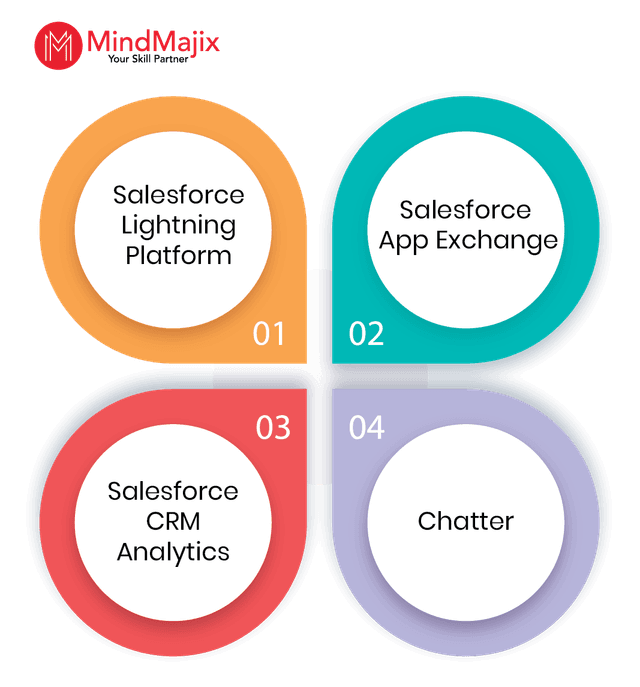
- Salesforce Lightning Platform: With this platform, you can build applications without specialised software or hardware. It also integrates smoothly with third-party tools to address unique business requirements.
- Salesforce AppExchange: It is a platform where you can find many applications built by independent vendors or partners. Most of these applications are free and can be integrated with Salesforce.
- Salesforce CRM Analytics: Salesforce CRM Analytics is a business intelligence (BI) tool that can process large volumes of data and generate insightful reports. You can get into critical areas of the data with a few clicks. To do so, you don’t need any training in data analytics. CRM Analytics is designed to integrate with other Salesforce platforms, such as Marketing Cloud, Sales Cloud, and Service Cloud, to analyse data across them.
- Chatter: Chatter is an enterprise collaboration platform from Salesforce that functions like an organization's intranet. It serves as a private directory for an organization, where each employee is assigned a profile page to update their work-related information. Similar to platforms like Facebook and LinkedIn, Chatter allows users to share information and views on various topics. Employees can also identify opportunities, campaigns, projects, service cases, and tasks within the platform.
Salesforce Cloud Products and Solutions:
We’ll learn about the key Salesforce Cloud products in this section.
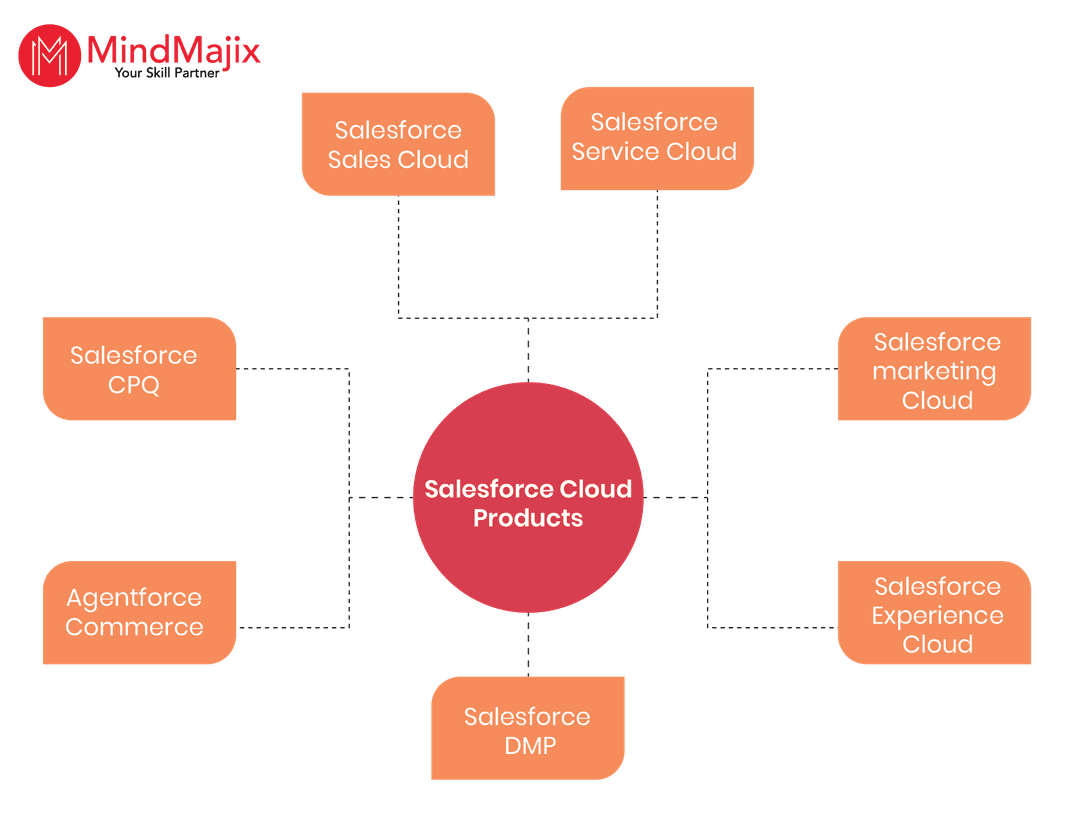
- Salesforce Sales Cloud:
This cloud-based product allows sales professionals to access it from anywhere on any device. They can manage their contacts seamlessly.
Sales Cloud helps organizations manage the entire sales process, negotiate deals faster, manage customers, and close deals quickly.
It covers the entire sales dataset and helps you draw useful insights and make data-driven decisions. Salesforce Cloud enables organizations to manage tasks such as contact management, opportunity management, sales collaboration, lead management, email integration, file sync, territory management, and more.
- Salesforce Service Cloud:
With Service Cloud, you can improve customer support by contacting customers via phone, email, and chat, providing personalised support. You can also leverage the AI functionalities built into the platform.
It manages customer service, including call centres, knowledge bases, live chat, and product support. It offers many services, including Lightning Console, Live Messaging, Service Analytics, Field Service Lightning, Omni Routing, and Social Customer Service.
- Salesforce CPQ:
CPQ stands for Configure, Price, and Quote. Using this tool, you can understand customer requirements and generate accurate quotes. The tool lets you apply discounts, set the final price, and send quotes to customers.
- Salesforce Marketing Cloud:
With Salesforce Marketing Cloud, you can build and manage any type of email campaign. These campaigns support an organization’s product marketing activities. You can also automate emails so that relevant messages reach the right person at the right time.
With this tool, you can build attractive landing pages to provide more information about the product you are promoting and increase the conversion rate from potential buyers to actual customers.
Salesforce Marketing Cloud helps navigate the customer journey on a single platform. It provides insights into marketing conditions and helps inform decision-making.
- Agentforce Commerce:
Agentforce Commerce Cloud provides a space for customer data integration, generating personalised feeds to engage customers. It helps accelerate a business's online presence.
It manages activities like campaign content management, catalogue management, and product pricing.
- Salesforce Experience Cloud:
Salesforce Experience Cloud is a robust platform for effective communication.
It serves as a place where customers, partners, and those associated with the product or service can come together to find solutions to their problems. It creates a free place to share everyone's insights and product ideas.
- Salesforce DMP:
DMP stands for Data Management Platform.
Using this tool, businesses can keep all their customer data in one place and use it for various segmentation purposes.
Now that you have learned the various Salesforce core platforms and cloud products. Let’s jump into the technical intricacies of Salesforce.

Salesforce CRM Architecture Explained
In this Salesforce tutorial, we will look into the Salesforce architecture in depth.
Salesforce architecture has many layers that work together seamlessly. Let's review the key layers of Salesforce Architecture.
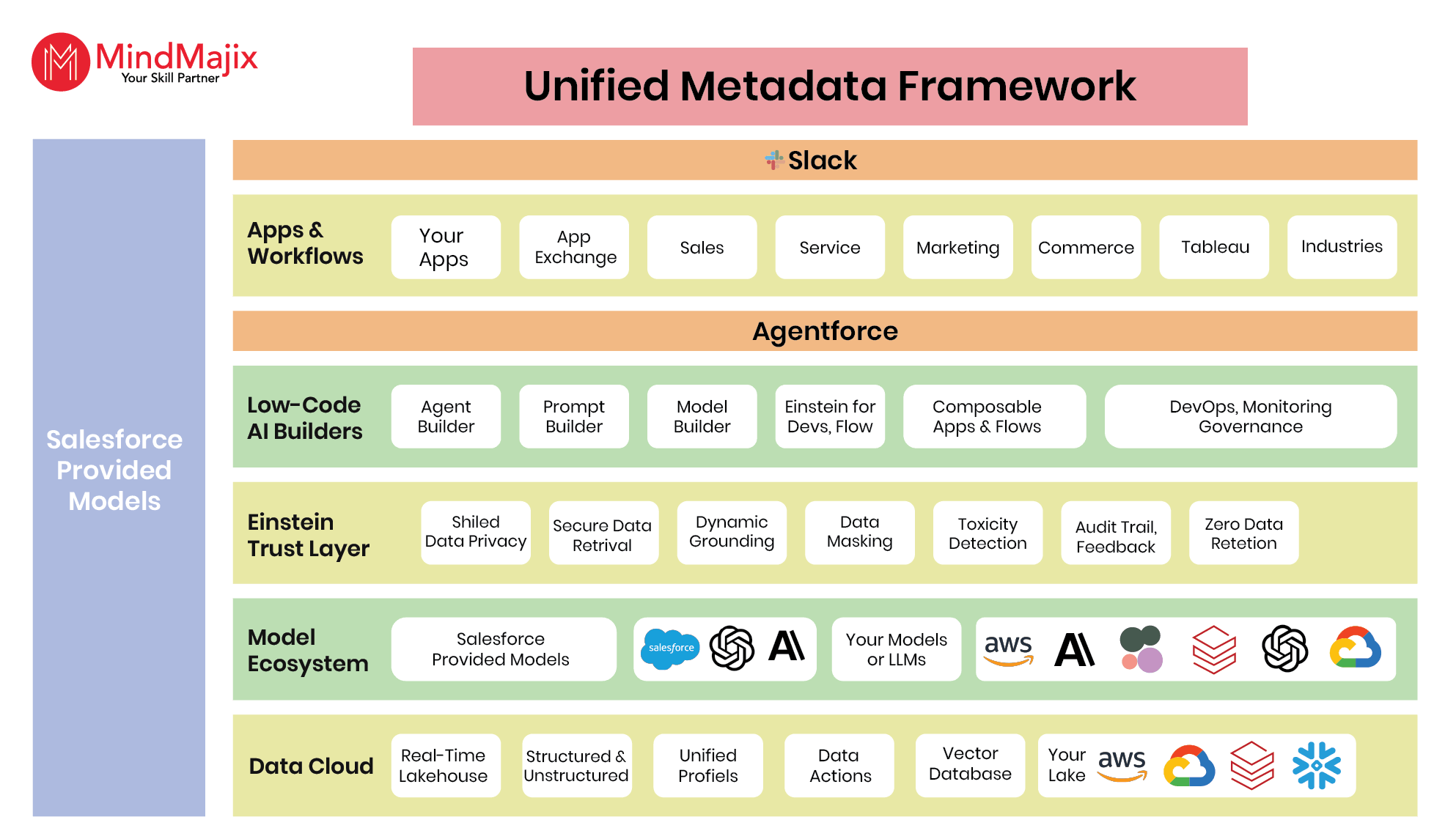
- Slack: Slack in Salesforce brings together apps, people, data, and agents in one place. It helps you communicate quickly through text, video and audio formats.
- Apps and workflows: This layer includes the applications you built and Salesforce Cloud products, including AppExchange, sales, service, marketing, and more.
- Agentforce: The role of AI in Salesforce CRM is undeniably a competitive edge. Salesforce architecture includes Agentforce, which helps developers build, test, deploy, and orchestrate AI agents.
- Low-code AI builders: This layer has various AI builders, such as agent builder, prompt builder, model builder, and more.
- Einstein trust layer: In this layer, you can find the components for data privacy, data retrieval, dynamic grounding, data masking, and data retention. Furthermore, Salesforce Einstein AI features are noteworthy. In particular, Einstein Copilot, Einstein Segments, and Einstein Assistant are key AI features. They play a key role in CRM automation significantly.
- Model Ecosystem: This Salesforce ecosystem consists of the Salesforce-provided models and your models.
- Data cloud: This layer includes lakehouse, unified profiles, data actions, and vector database.
- Multi-tenant layer: Multitenancy is a known feature of Salesforce that enables multiple clients or groups to share a common application. This layer of the architecture ensures that each client's or group's data is isolated and secure from other clients or groups.
Moreover, multitenancy lets developers create an app and share it with multiple clients. All of them use the same server and applications. This makes the platform very cost-effective.
This layer also allows all customers' data to be stored in a single database, while maintaining strict isolation and security. - Metadata: The Salesforce platform stores, processes, and manages data. In particular, data is stored in a shared database. This layer has many advantages. It helps businesses manage large amounts of data, keep it up to date, and secure it. It also maintains consistency across applications and platforms.
- API: These APIs let developers access apps from anywhere. They work with languages such as Java, C#, PHP, or .NET. These APIs help developers customise the Salesforce mobile app with more features. By accessing data through APIs, developers can add their own code to enhance the mobile app.
- Terminologies in Salesforce Architecture: Many terms are used when discussing Salesforce architecture. Let’s go through some of them here.
- APP: The app lets you visually collect various items. However, it's important to note that metadata elements, such as objects, classes, and Visualforce, are independent of apps.
- Superpod: It is a set of frameworks and load balancers. It includes outbound intermediary servers, system and capacity foundations, SAN storage, mail servers, and various other frameworks that support multiple instances. The Superpod provides service isolation within a data center. It helps ensure that if an issue occurs in a shared component, it does not affect every instance.
- Instances: An instance is the software configuration that appears to a user when they log in to Salesforce. This configuration shows the server details for the specific Salesforce organization it serves. Know that many instances can live on a single server. However, the instance varies by user location, which in turn increases complexity.
- Orgs: An org is a particular customer of a Salesforce application. A new org is generated in the system when a new user starts a trial on Salesforce. Each org has customizable security and sharing settings that can be configured as per requirements. A single org can provide support to any user anywhere. It can be multiple licensed individual user accounts, portal user accounts, or any other type of account.
- Sandboxes: Sandboxes contain sample data rather than original data. It allows developers to test various conditions to meet clients’ expectations regarding application development. With the sandbox, developers can create multiple copies of the production organization in different environments.
We hope that you have gained a clear understanding of Salesforce architecture and services.
Salesforce Development Environment - Overview:
Salesforce Environments enable users to access, deploy, and create applications with a variety of feature sets, based on the environment's setup.
The Salesforce development environment is the workspace for a specific login. If you sign up for a Gmail account, you will have a unique username and password.
In the same way, if you subscribe to Force.com cloud computing, you will be provided with a unique username and password to work in your designated cloud environment (Org).
- Salesforce Environment Types: Below are a few basic features every user has by default:
- The environment specified for you can be used for development, testing, and production.
- The environment is customised according to our requirements, i.e. (Apex code, Workflow, Custom DB Attributes & Objects).
- The environment has some basic features. Advanced environment features are not enabled by default, such as multi-currency / Dev preview tech.
- It is easy to access the environment, org or area in the web browser.
- A few environments can be accessed via the SOAP API, Metadata API, and Force IDEs.
We have different types of environments. They are broadly classified into three categories:
-
- Production Environment
- Testing Environment
- Development Environment
After creating the Salesforce Environment, you must perform the initial check-in of the Salesforce Environment:
-
- Check the user license count (Number of users)
- Check the count of the sandbox(daily working area)
Salesforce Lightning:
Salesforce Lightning components provide a client-server framework that can accelerate development and improve application performance.
With the help of Lightning Application Builder, applications can be made without coding and more quickly.
- Salesforce Lightning Features: Here, we showcase a list of Salesforce Lightning features and their benefits.
- Embedded With Latest Technology: Salesforce Lightning is built on recent technological advancements that can help you improve your customer relationships and interdepartmental collaboration. Apart from this, Salesforce releases three definite Lightning updates every year.
- Faster Selling: Users will get around 55 new Sales Cloud pages and 150 additional features in the new Salesforce Lightning platform. However, we have identified these five features as the most helpful.
- Opportunity Kanban: It helps visualise all your records at once. You will be able to monitor your work more effectively and can simply plan accordingly.
- Quarterly Performance Chart: It provides a performance chart of your work for the quarter. It can help track down your growth.
- Opportunity Workspace: It offers best practices, strategy & guidance for personalised workspace configuration.
- Assistant: The new Assistant in Salesforce Lightning helps you stay up to date on the latest updates throughout the day.
- Custom Dashboards: You can easily customise your dashboard to your requirements in the new Salesforce Lightning.
- Lightning Voice: Lightning Voice offers a significant advantage for businesspeople by connecting them with clients. You can make voice calls directly in Salesforce. Apart from this, you can also take notes and log calls while making or receiving a call.
- Steelbrick: Steelbrick helps Salesforce representatives create proposals and contracts for brands without any hassle. Moreover, they can obtain rebate approvals and gather signatures without signing out of their CRM.
- Outlook Alliance: The Salesforce-Microsoft alliance has taken business management to a whole new level. Currently, you can sign in to your Lightning platform by using your Outlook account.
Furthermore, the cloud-based Lightning Synchronisation also keeps your logs and contacts up to date across your Office 365 suite, Salesforce platform, and all of your other Microsoft Exchange accounts. - Lightning Application Builder: The new Salesforce Lightning Application Builder allows you to build applications without touching the coding part. You don’t need to be a hardcore coder to build applications on the Lightning platform; you can build applications with minimal effort.
Anyone on the team can customise the pages and relocate Lightning Components to pin up applications. There are three sorts of segments in the Lightning App Builder, which are mentioned below:
- Components from Lightning Exchange
- Pre-Built Components from Salesforce Org.
- Its custom components
- AppExchange: There are a total of 157 Lightning-ready third-party applications available in Salesforce’s AppExchange platform. All of those applications have been duly pre-reviewed and pre-integrated to work seamlessly on the Salesforce platform.
- Lightning Snap-Ins: Snap-Ins is one of the most helpful features of the Cloud Lightning Service. It allows companies to coordinate client support directly within pages and applications.
- Lightning Customer Community: It comes with a new UX that promises a completely new level of personalisation. Apart from this, it also provides built-in solutions for business issues.
Now that you have a solid understanding of Salesforce Lightning Features and benefits.
Future Scope for Salesforce Professionals:
There is a rise in the demand for Salesforce job roles in organizations due to the following reasons:
- Many organizations worldwide are switching to Salesforce to remain competitive as demand for service delivery increases. The pay scale would be high relative to the demand.
- Many organizations worldwide use the Salesforce platform to support various business functions. Hence, there is a massive demand for certified Salesforce job roles.
- Salesforce CRM capabilities in Sales Cloud are making it an industry leader, and hence, job roles in this segment have been increasing.
- There are close to 2,000 companies built on the Salesforce platform. Hence, there is an increased demand for people who can build better applications to enhance CRM capabilities.
Benefits of Salesforce
We’ll learn the benefits of leveraging the Salesforce platform in this section.
- Improved productivity – The collection and organizing of customer data is a full-time, tedious, and error-prone job. To avoid these types of manual errors and handling processes, they need Salesforce CRM.
- Enhanced customer experience – you can understand customers' exact needs and all follow-up conversations in one place. It will help you serve your customers above and beyond, ultimately improving the customer experience.
- No Single Point of Contact – The Salesforce platform serves as an SPOC, and you can track all customer-related information in the system. So it is easy for any new employee to pick up the case and work towards a resolution.
- Increased operational efficiency – Sales activities include tasks such as filling out forms, preparing reports for officials, handling legal issues, and completing administrative tasks. All of these tasks are fully automated, taking the load off the employee.
- Improved data utilization – Integration with third-party tools will be possible. The data can be further analysed, and decisions can be made to help the organization effectively handle prospective customers.
- Effective Time management – Salesforce provides tools that help sales professionals manage their time more effectively. These tools can include scheduling, task management, and reminder features, among others. They help salespeople to drive more sales.
- Advanced features – Salesforce’s calendar simplifies planning for meetings, calls, and webinars. It integrates with other Salesforce tools, making it easy to track appointments and related tasks.
- Enhanced productivity – Salesforce automates many administrative tasks, freeing salespeople's time to focus on building client relationships. It results in increased sales and customer loyalty.
- Detailed analytics – It allows salespeople to organize and analyse key data to produce reliable, detailed reports. It enables them to make data-driven decisions to achieve their goals.
Industries and Companies That Use Salesforce:
Salesforce states that Industries including automotive, communications, retail, financial services, healthcare, and transportation widely use Salesforce.
Salesforce reports that top companies such as Euronics, Pearson, Pandora, Lennar, FedEx, and PepsiCo use Salesforce to improve their CRM efficiency.
Salesforce CRM Certifications
Salesforce offers the following certifications for different roles.
- Foundations
- Salesforce certified platform foundations
- Salesforce certified Sales Foundations
- Salesforce certified Marketing Cloud engagement foundations
- Administrators
- Salesforce certified platform administrator
- Salesforce certified platform app builder
- Salesforce-certified Slack administrator
- Designers:
- Salesforce certified platform user experience designer
- Salesforce certified platform strategy designer
- Consultants:
- Salesforce certified sales cloud consultant
- Salesforce certified service cloud consultant
- Salesforce certified experience cloud consultant
- Architects
- Salesforce-certified platform identity and access management architect
- Salesforce certified platform integration architect
- Salesforce certified platform development lifecycle and deployment architect
- Marketers
- Salesforce certified marketing cloud engagement foundations
- Salesforce certified marketing cloud engagement administrator
- Salesforce certified marketing cloud engagement consultant
- Developers
- Salesforce certified platform developer
- Salesforce certified JavaScript developer
- Salesforce-certified Omnistudio developer
- Artificial intelligence
- Salesforce-certified Agentforce specialist
Salesforce Job Roles – A Glance
Let’s have a look at the different Salesforce job roles in this section.
- Salesforce Developer: A Salesforce developer has the skills to build cloud-based CRM applications. They should know about the full range of Salesforce and its limitations.
- Salesforce Administration Role: Salesforce administrators perform a range of tasks, including maintaining data quality, helping users develop reports, running backups, adding fields, adding new whitelisted IP addresses, and more.
- Salesforce Consultant: Salesforce consultants should be strong communicators and effective people managers. They should be good at the technical and functional aspects of the Salesforce platform.
- Salesforce Architect Role: A Salesforce architect's role requires comprehensive knowledge of web services and Salesforce. They should possess knowledge of various programming languages and related technologies.
- Salesforce Project Manager: The project manager should possess comprehensive knowledge of cloud computing and its business applications, as well as expert knowledge of Salesforce. They interact with various departments on customer projects to ensure they are completed on time.
- Salesforce Business Analyst: They identify business requirements and develop a solution using the Salesforce platform. These people are also responsible for analysing the runtime environment and implementing Salesforce in an organization.
Salesforce CRM Salary Trends
The table shows salary trends for Salesforce professionals by role.
| Job Title | Salary Range | |
| US | India | |
| Salesforce Architect | $182.6 k per annum (6figr) | 37.5 LPA (6figr) |
| Salesforce Consultant | $127.2 k per annum (Indeed) | 13 LPA (AmbitionBox) |
| Salesforce Business Analyst | $120.6k per annum (ZipRecruiter) | 17 LPA (6figr) |
| Salesforce Developer | $117.3k per annum (Indeed) | 18 LPA (AmbitionBox) |
| Salesforce Administrator | $89k per annum (Indeed) | 5.7 LPA (Indeed) |
Frequently Asked Questions:
If you're preparing for Salesforce roles, it’s also helpful to go through these comprehensive Salesforce interview questions to understand real-world questions asked in interviews.
1. Why is Salesforce used?
Ans: Salesforce acts as a one-stop solution for all business-related activities. It enables the organization to connect with its employees, customers, and partners worldwide. Salesforce enables companies to track the customer journey and deliver better services to gain customer loyalty.
2. How long does it take to learn Salesforce?
Ans: There are various Salesforce modules available, such as User, Consultant, Admin, and Developer. The time required to learn each module varies depending on its concepts and length. On average, it takes 3-4 weeks to learn Salesforce.
3. What does a Salesforce business analyst do?
Ans: A Salesforce Business Analyst must perform various roles depending on the organization's requirements. In general, an Analyst is responsible for tasks such as requirements gathering, testing, training, Salesforce configuration, post-deployment support, and more.
4. Is Java required to learn Salesforce?
Ans: Java is not mandatory for Salesforce professionals. One can become a Salesforce professional even without learning Java, but knowing Java programming is an added advantage.
5. What is the future of Salesforce?
Ans: Companies that use Salesforce have experienced significant improvements in customer satisfaction, sales revenue, lead generation, and deployment speed. Companies worldwide are moving faster towards implementing Salesforce to achieve the best results.
6. What are the languages used in Salesforce?
Ans: Programming languages and frameworks used in Salesforce development are Visualforce, SOQL/SOSL, Apex, and Lightning.
Conclusion:
In this blog, we have covered all the essential components of the Salesforce platform. We hope that this Salesforce tutorial for beginners and advanced learners has provided you with the essential knowledge of Salesforce and career opportunities.
However, getting certified in Salesforce Training will help you explore Salesforce in a great way. MindMajix offers Salesforce training for all Salesforce aspirants, which you can use to sharpen your skills and secure promising jobs across industries.
 On-Job Support Service
Online Work Support for your on-job roles.

Our work-support plans provide precise options as per your project tasks. Whether you are a newbie or an experienced professional seeking assistance in completing project tasks, we are here with the following plans to meet your custom needs:
- Pay Per Hour
- Pay Per Week
- Monthly
| Name | Dates | |
|---|---|---|
| Salesforce Training | Oct 20 to Nov 04 | View Details |
| Salesforce Training | Oct 24 to Nov 08 | View Details |
| Salesforce Training | Oct 27 to Nov 11 | View Details |
| Salesforce Training | Oct 31 to Nov 15 | View Details |

Vinod M is a Big data expert writer at Mindmajix and contributes in-depth articles on various Big Data Technologies. He also has experience in writing for Docker, Hadoop, Microservices, Commvault, and few BI tools. You can be in touch with him via LinkedIn and Twitter.


